How to Build a Custom WordPress Client Dashboard
A WordPress client dashboard should show traffic, upcoming posts, and how to reach you — not WordPress News. Build it around the role, not default widgets.
23rd of April, 2026 4 min read uiXpress
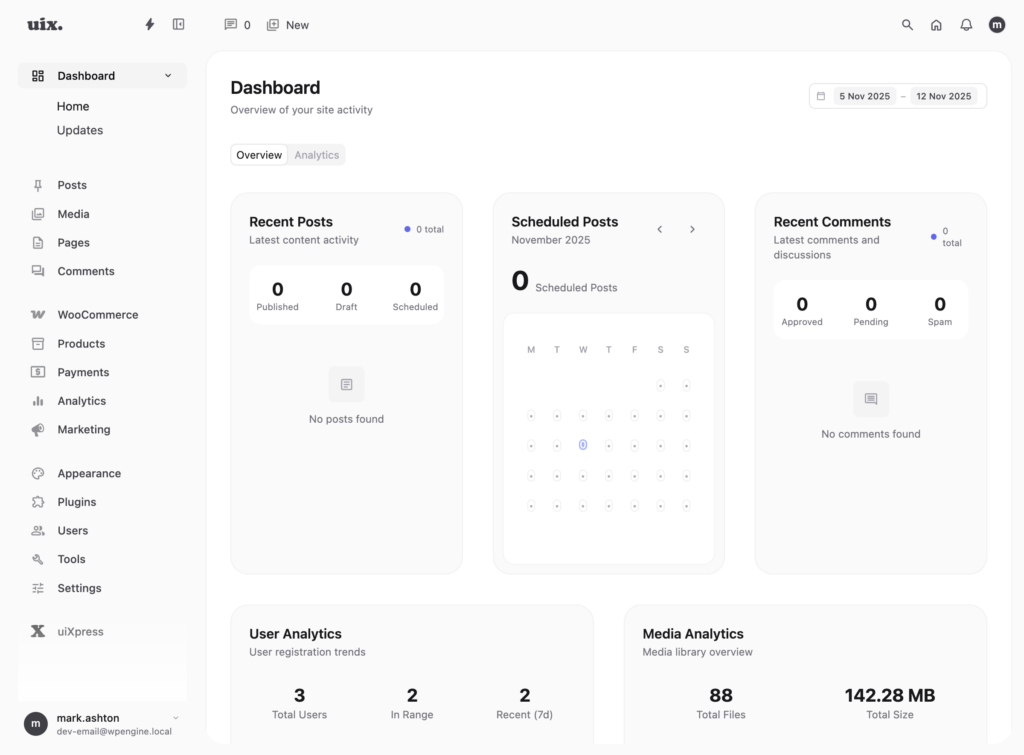
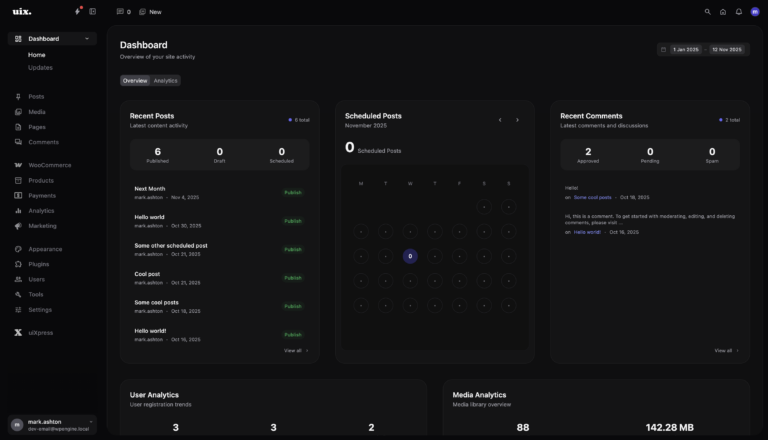
A custom WordPress dashboard for clients is not a prettier At a Glance widget. It is a home screen that answers the questions they actually have: did the site get traffic, what is scheduled, are there orders or comments waiting, and how do they reach you. The default dashboard answers none of those well, which is why “WordPress client dashboard,” “custom user dashboard,” and “custom WordPress dashboard for users” stay active searches.
If the first screen after login is WordPress News and a Site Health lecture, you have already framed the admin as someone else’s software.
Who the home screen is for
Administrators, editors, and clients should not share a dashboard. The jobs are different.
- You need updates, plugin state, errors, and maybe a database or activity view.
- Editors need drafts, scheduled posts, and a way to jump into writing.
- Clients need proof the site is alive, a short list of tasks, and a support path.
A single widget layout for every role is how clients click into Plugins. Role-specific dashboards are the feature, not a nice extra.
What belongs on a WordPress client dashboard
Keep it short. If a card does not change what they do this week, drop it.
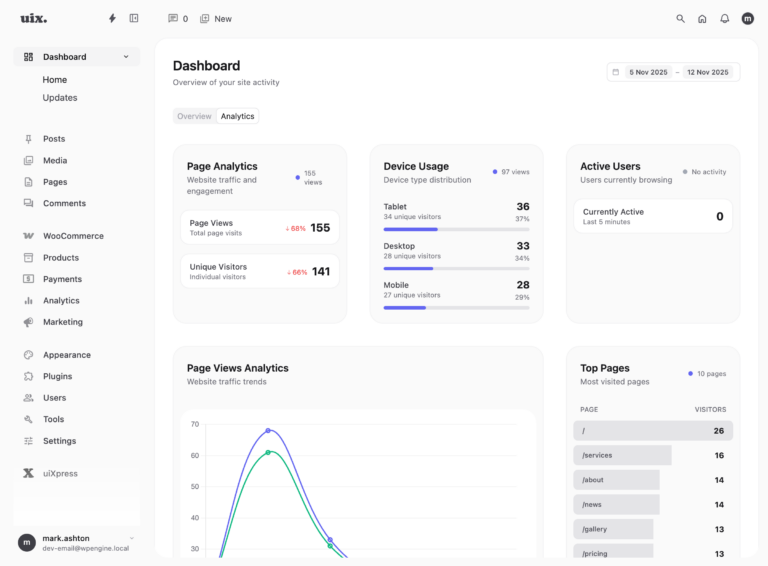
- Traffic they can trust — page views for the last 7 or 30 days, stored on their site if you can avoid another Google login
- Publishing — scheduled posts and recent comments
- Commerce — orders or revenue only if they run WooCommerce and you want them in the admin at all
- Support — hours, a booking link, or a one-page guide
- Nothing from wordpress.org news unless you have a reason to remind them this is WordPress
White-label the rest of the chrome so the dashboard does not sit inside an obviously stock admin. We covered that handover in how to white label the WordPress admin.
Custom user dashboard vs front-end portal
These get confused in search.
- Client dashboard lives in wp-admin. The user is a role you created. They edit content or view reports in the real admin.
- Front-end user dashboard is a page on the site for customers — account, orders, membership. That is WooCommerce My Account or a membership plugin, not an admin theme.
If you are building a customer portal, do not put those people in wp-admin. If you are handing a marketing site to a business owner, a custom admin dashboard is the right layer.
How to build one without three plugins
The usual stack is: hide default widgets, add an analytics plugin, add a white-label plugin, add a menu editor. It works until one of them updates and the welcome panel comes back.
A cleaner path:
- Create a client role that cannot install plugins or switch themes.
- Give that role a menu with five items or fewer.
- Replace the dashboard widgets with cards that match the role.
- Brand the login page so the first impression matches the dashboard.
- Walk the admin as that user on staging before handover.
The role editor and menu belong in the same product as the dashboard. Otherwise you will fix permissions in one plugin and widgets in another.
Client dashboards in uiXpress
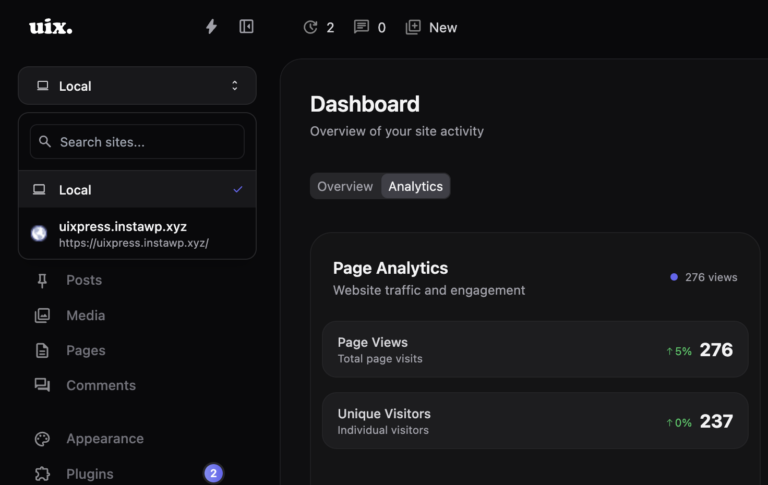
uiXpress replaces the default home screen with a card-based dashboard. You can surface analytics, scheduled content, media, and system health, then hide the cards a client should not see. Combined with white label and role-based menus, the login-to-home path is a branded workspace instead of stock WordPress.
Privacy-first analytics help here. Clients should not need a Google account to believe the retainer is working. First-party cards on the dashboard are enough for most editorial and brochure sites.
What not to put on a client home screen
- PHP memory graphs they cannot act on
- Plugin update counts that tempt them to click Update
- Unfiltered activity logs of your staff
- A database explorer, ever
Those belong on your Administrator dashboard. The client dashboard should feel finished, not powerful.
A one-paragraph handover note
Write this into the go-live email: “When you log in you will land on a home screen with traffic and upcoming posts. Use the left menu for pages and media. If you need a plugin or a design change, email us — those items are hidden on purpose.” That sentence prevents half of the ‘I clicked something and now the site looks different’ tickets.
A custom WordPress client dashboard is a product decision. Build it around the role, not around the widgets WordPress shipped in 2013.