WordPress Role Editor: How to Create Custom Roles Without Breaking Capabilities
A WordPress role editor lets you create custom roles and grant only the capabilities each job needs — without handing clients Administrator access.
21st of January, 2026 5 min read uiXpress
WordPress ships with a handful of default roles — Administrator, Editor, Author, Contributor, and Subscriber — plus extras if you run WooCommerce or a membership plugin. That set is a starting point, not a permission model. A WordPress role editor exists because most real sites need people who can do some of the work, but not all of it.
If you have ever given a client Administrator access “just so they can edit pages,” you already know the risk. Administrators can install plugins, change themes, edit users, and in many cases run code. A proper role editor lets you create a custom role, copy a safe baseline, and grant only the capabilities that role actually needs.
What a WordPress role editor actually changes
Roles are named collections of capabilities. Capabilities are the individual permissions WordPress checks before it lets someone edit a post, moderate a comment, manage categories, or install a plugin. The default Users screen shows role names. It does not show the capability list underneath them, and it does not let you create a new role.
That gap is why “role editor” and “WordPress role editor” keep showing up in search. People are not looking for a new theme. They are looking for a way to answer questions like:
- Can a shop manager refund orders without installing plugins?
- Can an editor publish posts but not touch widgets or menus?
- Can a client upload media without seeing other users?
- Can a contractor have a temporary role that disappears after the project?
A dedicated role editor answers those questions in the admin, without a custom functions.php snippet that nobody remembers six months later.
When the default WordPress roles are not enough
The built-in roles assume a simple publishing workflow. Modern WordPress sites rarely look like that. Agencies hand over sites to clients. Stores have warehouse staff. Editorial teams have freelancers. Multisite networks have site admins who should not be super admins.
Common failure modes:
- Over-permissioned clients. Giving Administrator is faster than mapping capabilities. It is also how plugins get installed without your knowledge.
- Under-permissioned editors. An editor who cannot manage categories or reuse a reusable block will keep asking you to “just do it.”
- Plugin roles that collide. WooCommerce, LMS plugins, and membership tools register their own roles. Without a role editor, you cannot see the full picture in one place.
- Orphaned capabilities. After you remove a plugin, leftover capabilities can sit on roles indefinitely.
If you manage more than one user type, you need a WordPress role editor that lists roles, shows user counts, and lets you inspect every capability before you save.
How to create a custom WordPress role safely
Start from the smallest role that is still useful, then add capabilities. Do not clone Administrator and subtract. Subtraction is how unused privileges survive.
- Name the job, not the person. “Client publisher” or “Store support” ages better than “Sarah.”
- Copy a nearby default role. Editor is the usual starting point for content work. Shop manager is the usual starting point for commerce.
- Grant publish rights only if the person can go live without review. Draft and edit are safer defaults for clients.
- Keep plugin, theme, and user management off the role unless that person is on your team.
- Test with a real user account before you roll the role out. Capability names are easy to misread.
Watch for capabilities that sound harmless. unfiltered_html and edit_theme_options are common examples. They look like content permissions. They are not.
Capabilities worth reviewing on every site
You do not need to memorise the full WordPress capability map. You do need a short audit list:
- Content:
edit_posts,publish_posts,edit_others_posts,edit_pages,delete_pages - Media:
upload_files— enough for most clients, not enough if they also need to delete other people’s files - Comments:
moderate_comments - Structure:
manage_categories,edit_theme_options - Dangerous:
install_plugins,update_plugins,edit_plugins,install_themes,switch_themes,list_users,promote_users,manage_options
If a role has any of the dangerous group, treat it as staff access, not client access.
Using the uiXpress role editor
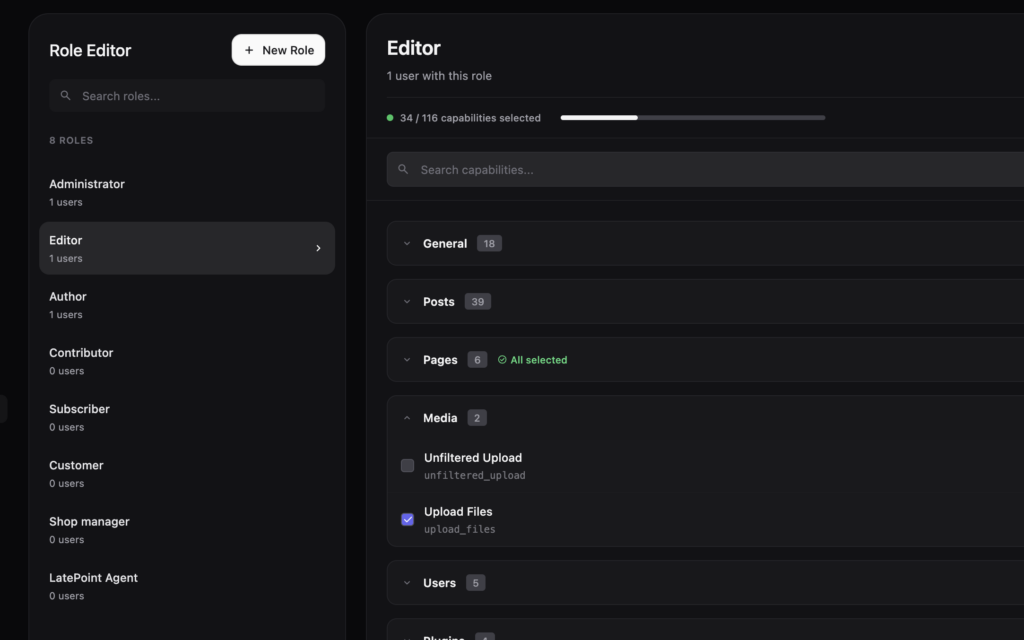
uiXpress includes a built-in WordPress role editor designed for this exact workflow. You get a searchable role list with user counts, a create-role modal, and a capability panel you can scan instead of hunting through checkboxes on a cramped settings page.
The practical advantages for agencies:
- Create a role with a readable name and a clean slug.
- Search capabilities instead of scrolling a flat list.
- See how many users sit on each role before you change it.
- Keep role work next to the rest of the modern admin — users, activity logs, and the dashboard — instead of installing a separate plugin just for permissions.
Pair the role editor with the activity logger after you roll out a new role. If someone can now delete posts or change users, you want a record of it.
Role editor mistakes that cause outages
Most role-editor incidents are not dramatic hacks. They are Monday-morning lockouts.
- Editing the Administrator role in place. Create a new role for experiments. Leave Administrator alone.
- Removing
manage_optionsfrom the only remaining admin. Always keep one unmodified Administrator account. - Changing roles on a live shop during trading hours. WooCommerce capabilities affect checkout staff immediately.
- Forgetting custom post types. Portfolio items, products, and listings often register their own
edit_*capabilities.
If you are unsure, duplicate the role, assign it to a test user, and log in as that user in a private window.
Do you still need a standalone user role editor plugin?
Standalone user role editor plugins are fine if permissions are the only admin problem you want to solve. Many teams already have one installed from a previous handover. The limitation is context. A role change is rarely just a role change — it is also a menu problem, a dashboard problem, and an audit problem.
If you are already replacing the default WordPress admin with a modern admin theme, it is cleaner to edit roles in the same product that white-labels the menu, logs activity, and builds the client dashboard. That is the job of uiXpress: one admin layer, including a role editor, instead of a pile of single-purpose plugins.
Create the smallest useful role, test it, then keep Administrator for the people who should be allowed to break the site.