WordPress Plugin Manager: A Better Way to Update, Audit, and Recover Plugins
The default plugins screen is a directory listing. A real WordPress plugin manager helps you audit, update, and recover plugins without guessing.
18th of February, 2026 5 min read uiXpress
The default WordPress plugins screen is a long table: name, description, version, and a row of links. It works when you have eight plugins. It falls apart when you have forty, half of them need updates, and you cannot remember which one added that extra dashboard widget.
A WordPress plugin manager is not just a prettier list. It is a workspace for installing, updating, inspecting, and recovering plugins without turning every change into a guessing game. Search interest for “WordPress plugin manager,” “WP plugin manager,” and “WordPress plugin management” stays high because the default screen never grew into that workspace.
What the default plugins screen does not tell you
WordPress will tell you that an update is available. It will not tell you, in the same view:
- How large the plugin is on disk
- Whether it is making expensive admin-ajax or REST calls
- Which version you were on before the last update
- Whether the plugin is abandoned upstream
- What to do if the update whitescreens the admin
That is why teams install a second plugin just to manage the first forty. Plugin management is operational work. The default UI treats it as a directory listing.
The real cost of a messy plugin list
Most WordPress performance complaints are not “PHP is slow.” They are “we stacked plugins until the admin felt heavy.” Each plugin can add menu items, admin notices, scheduled tasks, and front-end scripts. Without a plugin manager that surfaces that cost, you only notice the problem when a client says the dashboard is sluggish.
Typical patterns:
- Duplicate jobs. Two SEO plugins, two related-posts plugins, two form tools left over from a redesign.
- Zombie plugins. Deactivated but still sitting in
wp-content/plugins, still in the update queue, still in backups. - Blind updates. “Update all” on a Friday afternoon, followed by a WooCommerce checkout regression.
- No rollback plan. The plugins screen can update. It cannot calmly restore the previous ZIP.
A usable WordPress plugin manager should make those problems visible before they become tickets.
What a modern WordPress plugin manager should include
If you are evaluating a WP plugin manager — built-in or third-party — use this checklist.
1. A split view, not a 40-row table
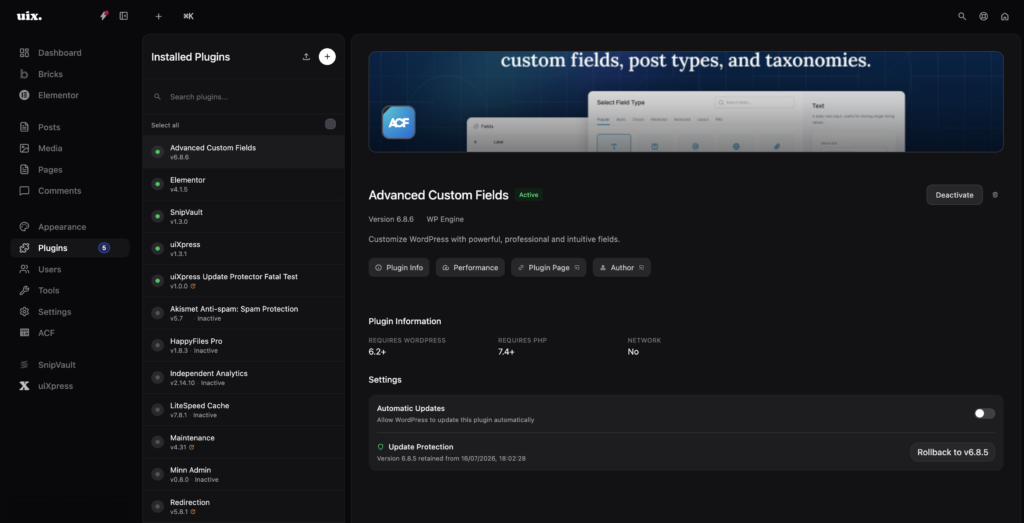
Select a plugin and see details beside the list: version, author, requirements, changelog, and actions. Scrolling a description column is not inspection.
2. Search that covers more than the plugin title
You should be able to find a plugin by folder name, author, or a half-remembered feature. Agencies inherit sites. The person who installed “that redirect plugin” is rarely still on the project.
3. Repository install without leaving the admin
Installing from WordPress.org is core functionality. A better plugin manager keeps search, sorting, and the installed list in one modern interface so you are not bouncing between “Add New” and “Installed Plugins.”
4. Performance context
A plugin that looks harmless on the list can still be the one polling every admin page. Seeing request cost or a simple performance inspector next to the activate button changes what you keep.
5. Recovery
Updates fail. The useful question is whether you can get back to the last known-good version without FTP and a backup hunt.
A safer plugin update workflow
You do not need a 12-step runbook. You need a repeatable habit.
- Update staging first if the site has WooCommerce, memberships, or a page builder.
- Update one risk group at a time — security plugins, then commerce, then everything else.
- Read the changelog for anything that touches checkout, login, or caching.
- Keep a rollback path for the plugins that would take the store down.
- Delete what you deactivated last quarter. Deactivated plugins still get exploited when they are outdated.
WordPress core security releases in 2026 have been a reminder that login and plugin-editor surfaces are part of the attack area. Leaving stale plugins on disk is not a neutral choice.
How uiXpress handles WordPress plugin management
uiXpress replaces the default plugins screen with a modern plugin manager: split-panel layout, repository search, install and update actions, and a performance inspector so you can see what a plugin is costing the admin.
That matters on agency retainers. You are not just toggling plugins. You are answering “why is this site slow” and “what did we change last week” in the same place you activate an update. Combined with the activity logger, plugin activations stop being anonymous events.
If you white-label the admin for clients, you can also keep the plugin list out of their way. Most clients do not need a plugin manager. Your team does. The default WordPress menu does not make that distinction easy.
Plugin manager vs “another admin plugin”
It is reasonable to be cautious about installing a plugin to manage plugins. The test is whether it replaces screens you already use, or whether it adds a new settings page you will forget.
uiXpress is an admin theme and workspace — dashboard, media, users, search, and plugin management — so the plugin manager is not a separate product. If you only need bulk enable/disable on a multisite network, a smaller dedicated tool can be enough. If you want plugin management next to a modern WordPress admin UI, keep it in the same layer.
A practical cleanup you can do this week
Open your plugin list and mark each one as keep, replace, or delete. Anything you cannot explain in one sentence is a candidate. Check for two plugins doing the same job. Then update the keepers on staging and delete the rest.
The WordPress plugin manager you want is the one that makes that audit fast enough that you will actually do it again next quarter. That is the gap uiXpress is built to close.