WordPress Global Search: Find Posts, Users, and Settings From One Shortcut
The Gutenberg command palette is not a WordPress global search. Here is how to find posts, users, and admin screens from one keyboard shortcut.
17th of June, 2026 4 min read uiXpress
The default WordPress admin search is a field at the top of whichever list table you are already on. It searches posts when you are on Posts, users when you are on Users, and nothing useful when you are on Settings. There is no single shortcut that finds a page, a user, a plugin screen, and a category from anywhere in wp-admin.
That is the product gap behind queries like “WordPress global search,” “WordPress admin search,” and “how to use WordPress global search.” People have used command palettes in code editors and design tools. They expect the same thing in the CMS they use all day.
WordPress already has a command palette — it is not enough
Gutenberg’s command palette (Ctrl/Cmd + K in the editors) has improved, and WordPress 7.1 made recent commands persist in user preferences. That helps while you are editing a post. It does not replace a global admin search that covers:
- Posts, pages, and custom post types
- Users
- Categories and other taxonomies
- Admin menu destinations
- Quick actions such as “add user” or “clear cache” if you register them
If your day is half writing and half operations, you need search that works on the plugins screen, the WooCommerce orders list, and the dashboard — not only inside the block editor.
What WordPress global search should feel like
The bar is the same as every good command palette:
- One keyboard shortcut from any admin screen
- Results grouped by type, updating as you type
- Filters so “order” can mean a post title or a WooCommerce order
- History, because you will search for the same settings page every week
- Actions, not just links — create, jump, or run a registered command
Without grouping, a query like “home” returns a pile of attachments, a page, and a user named Homer. Grouping is the feature that makes global search usable.
Command syntax that earns its keep
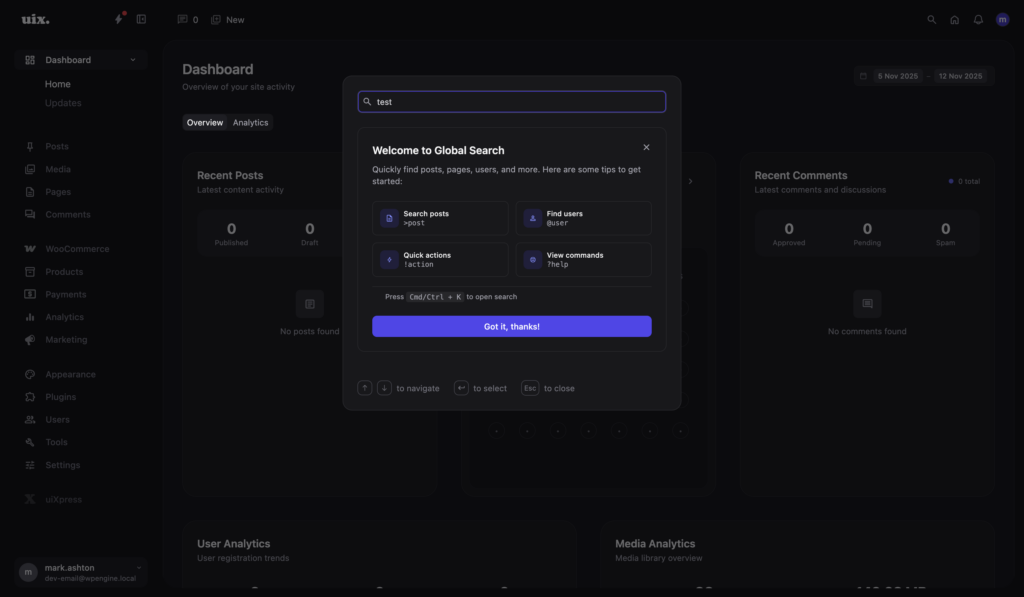
Free text is the default. Prefixes stop the noise:
>post— only posts>page— only pages@user— only users#category— only categories!action— only quick actions
You do not need users to memorise the list on day one. Power users will. Everyone else can still type a title and click.
How to search WordPress faster today
Even before you change tools, a few habits help:
- Use the list-table search when you already know the object type.
- Use the command palette in the editors for block and editor commands.
- Bookmark the three settings screens you always hunt for.
- Stop using the browser’s in-page search as your admin navigation. It cannot see screens you have not loaded.
Those habits still leave a hole. The hole is “I know it exists and I do not remember which menu it lives in.”
Global search in uiXpress
uiXpress adds a keyboard-driven global search across posts, pages, users, categories, and admin resources, with command syntax and search history. It is built for the whole admin, not only the block editor.
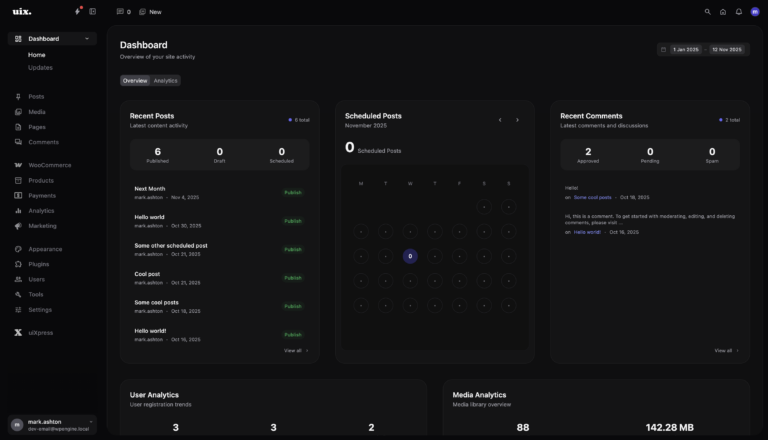
That is the difference between a WordPress admin theme that only restyles the menu and one that changes how you move. Combined with a modern menu and a custom dashboard, search becomes the primary navigation for people who already know what they want.
Developers can extend it through the Quick Actions API, which is how you add site-specific jumps — “open staging,” “new landing page,” “last WooCommerce refund” — without teaching a new UI.
Teaching a team to use it
Put the shortcut on the handover doc. One line is enough: “Press the search shortcut from any admin screen. Type a title, a user, or a setting. Use >page if the results are noisy.”
Teams adopt global search when it is faster than the menu on the third try. If the first result is wrong, they go back to hovering over WooCommerce.
Global search vs a better menu
You still need a clear admin menu. Search does not replace information architecture for clients who log in once a week. It replaces the tax you pay when you log in twenty times a day.
If you white-label the admin, keep search available to staff and consider whether clients need it. Some client roles are happier with five menu items and no command palette. Your editors will want both.
If you have been looking for WordPress global search, you are not looking for another settings field. You are looking for a command palette that covers the admin you actually use. That is what uiXpress ships.