WordPress Database Explorer: View Tables Safely Without phpMyAdmin
A WordPress database explorer belongs in the admin for inspection — not as an unguarded SQL console. Here is how to view tables without phpMyAdmin.
6th of May, 2026 4 min read uiXpress
Most WordPress database work still happens in phpMyAdmin, Adminer, or a separate desktop client. That is fine when you are a developer on a staging box. It is a poor fit when you need to inspect a row, confirm an option value, or find a rogue transient without opening the entire server stack.
Search volume for “database explorer,” “WordPress database viewer plugin,” and “WordPress database editor plugin” is the tell. People want a WordPress database explorer that lives in the admin, is limited to administrators, and does not feel like a raw SQL console pointed at production.
When a database viewer is the right tool
You should not browse production tables for fun. You should have a viewer for the jobs that keep turning into SSH sessions:
- Confirming an option actually saved after a plugin settings change
- Finding a leftover table from a plugin you deleted last year
- Checking how many rows a logging plugin has dumped into
wp_postmeta - Inspecting a user meta key before you write a migration
- Verifying a custom table exists before you blame the theme
Those are inspection jobs. They are not “run an UPDATE across wp_posts on Friday.”
What a safe WordPress database explorer must include
A database plugin that is merely “phpMyAdmin in wp-admin” is a liability. Treat these as requirements, not extras.
- Administrator-only access.
manage_optionsat minimum. No editor should ever see this screen. - Capability and nonce checks on every request. A hidden menu item is not security.
- Read-first defaults. Browse and search should be easy. Destructive actions should be hard.
- Password confirmation for deletes. Re-auth before dropping a table.
- Prepared statements and identifier validation. Table names from the UI must never be concatenated into SQL.
- No front-end exposure. This belongs behind the admin and application passwords, not a public endpoint.
If a plugin advertises “edit any table like a spreadsheet” and says nothing about permissions, do not install it on a client site.
Explorer vs query editor vs phpMyAdmin
These tools overlap, but they are not the same job.
- Table browser. List tables, open a structure view, paginate rows, search a column. This is what most WordPress users mean by database explorer.
- SQL editor. Useful for a known SELECT. Dangerous if it accepts unrestricted writes from anyone who can load the page.
- phpMyAdmin / Adminer. Still the right tool for imports, complex joins, and server-level work. They should not be the only option for a two-minute lookup.
The best WordPress database viewer plugin is the one that covers the first job so well you stop opening phpMyAdmin for it — and stays out of the way for the rest.
How to inspect WordPress tables without making things worse
- Prefer staging. Production is for confirmation, not exploration.
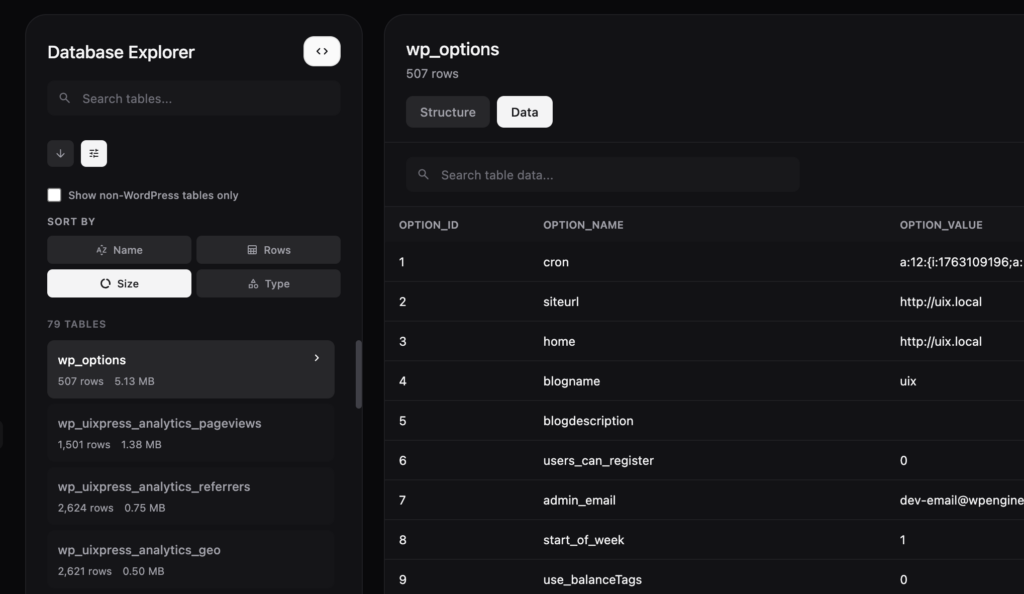
- Start with table size and row counts. Bloated
wp_optionsautoload and leftover logger tables show up here. - Search before you scroll. Post meta and options tables are too wide to browse.
- Copy a row out if you need to share it. Do not screenshot credentials or emails into Slack.
- Never run a write query you cannot reverse. Take a backup first, even for a “simple” UPDATE.
Autoloaded options and post meta bloat are two of the most common “the site got slow and we don’t know why” causes. A database explorer that shows table size makes that conversation factual.
The uiXpress database explorer
uiXpress includes a database explorer aimed at administrators: table browser, structure view, data view with search, and a query editor. Access is limited to users with manage_options. Table deletion requires password verification against the current account. Requests go through the WordPress REST API with capability and nonce checks.
That is the point of putting a database viewer inside a modern WordPress admin theme. You already have role controls and an activity log. The explorer should sit behind those, not beside an unrelated plugin with its own login.
Use it to inspect. Use backups and staging to change.
When you should not use an in-admin database plugin
Skip the explorer and go to the host’s database tool when you need to:
- Import or export a full database
- Change table prefixes
- Repair a crashed table
- Work on a site you cannot log into
An in-admin explorer assumes WordPress is healthy enough to load. If the site is down, it cannot help you.
Keep the explorer off client roles
White-label the admin all you want — a database explorer is not a client feature. Leave it on Administrator only, and pair it with the activity logger so you have a record if someone with admin access starts browsing tables they should not.
If you have been searching for a WordPress database viewer plugin, you probably do not want another phpMyAdmin. You want a guarded table browser next to the rest of your admin tools. That is the version worth installing.