WordPress Admin Dark Mode: How to Get a Real Dark Theme in wp-admin
WordPress still does not ship a real admin dark mode. Invert filters break WooCommerce and Gutenberg. Here is what a usable wp-admin dark theme requires.
12th of March, 2026 4 min read uiXpress
WordPress still does not ship a real admin dark mode. You can pick an admin colour scheme. You can invert the page in the browser. Neither of those is a WordPress admin dark theme. One only tints the menu. The other turns images, charts, and plugin brand colours into a grey mess.
That is why people search for “WordPress admin dark mode,” “WordPress dashboard dark mode,” and “WP admin dark mode.” They want the same thing they already have in VS Code, Linear, or their phone: a dark interface that stays readable after sunset, without breaking WooCommerce or Gutenberg.
Why invert-based dark mode fails in wp-admin
The WordPress admin is not one stylesheet. It is core CSS, Gutenberg iframes, TinyMCE, inline styles, and whatever each plugin decided to hard-code in 2017. A CSS filter: invert() on the whole page cannot tell a background apart from a logo or a product photo.
The usual damage:
- WooCommerce status badges become unreadable
- Charts render as dark-on-dark
- Plugin settings pages keep white cards on a now-dark canvas
- Images and screenshots look like film negatives
If your “dark mode” plugin is just inverting the document, it is a novelty, not an admin theme.
What WordPress 7.1 changed — and what it did not
WordPress 7.1, released in August 2026, added a design-system foundation for admin interfaces: semantic tokens and a ThemeProvider so custom React admin panels can follow colour, radius, and cursor styles more consistently. The Site Editor can now honour your chosen admin colour scheme instead of forcing a fixed dark sidebar.
That is useful for developers building new panels. It is not a site-wide WordPress admin dark mode. Full admin theming was explicitly out of scope for 7.1. If you need wp-admin, Gutenberg, and third-party plugin screens to look dark today, you still need a dedicated dark engine — not a core colour scheme.
The official 7.1 release post is worth reading if you build admin UI. Just do not expect it to replace a dark-mode product.
What a real WordPress admin dark theme has to do
A credible dark mode has to treat the admin as a living document, not a static skin.
- Scoped overrides, not inversion. Surfaces, borders, and text change. Brand accents and images stay intact.
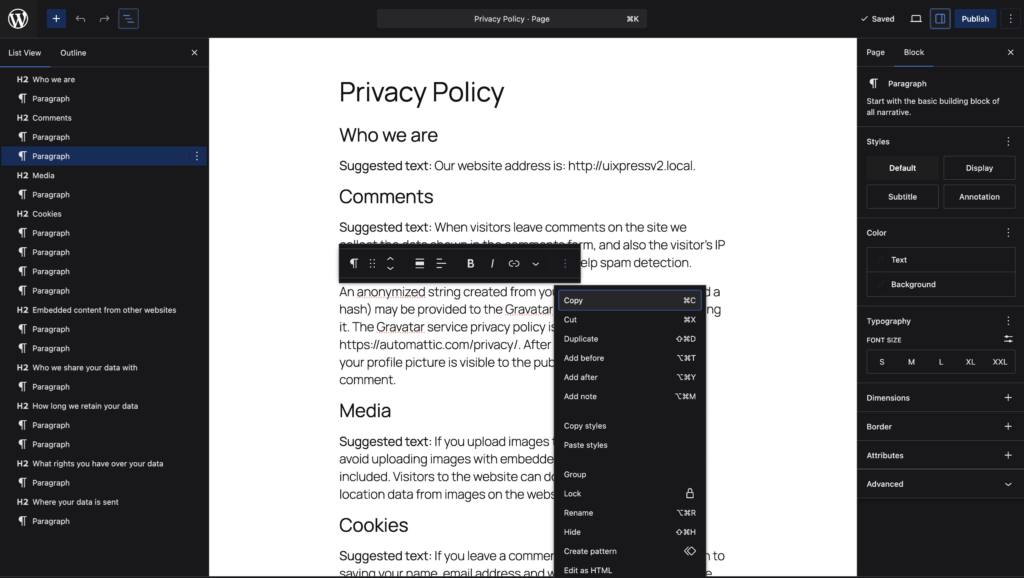
- Editor coverage. Gutenberg popovers, the block editor canvas, and TinyMCE are separate worlds. If dark mode stops at the dashboard, writers will turn it off.
- Plugin compatibility. Settings pages load late. The engine has to rescan the DOM instead of styling only the first paint.
- User choice. Some clients want dark. Some want light. Some want system preference. Agencies often need to lock a theme for brand reasons.
If any of those are missing, you will get screenshots of “dark mode broken on the products page.”
Dark mode is not only a preference
For people who live in wp-admin, contrast fatigue is real. Support staff, store managers, and content teams often work late, on laptops, in dim rooms. A light admin at 11pm is not a branding statement. It is glare.
There is also a client-handover angle. If you sell a modern WordPress admin theme, dark mode is one of the first things a prospect toggles on a demo. A scheme that only darkens the sidebar does not survive that test.
How Dark Engine in uiXpress works
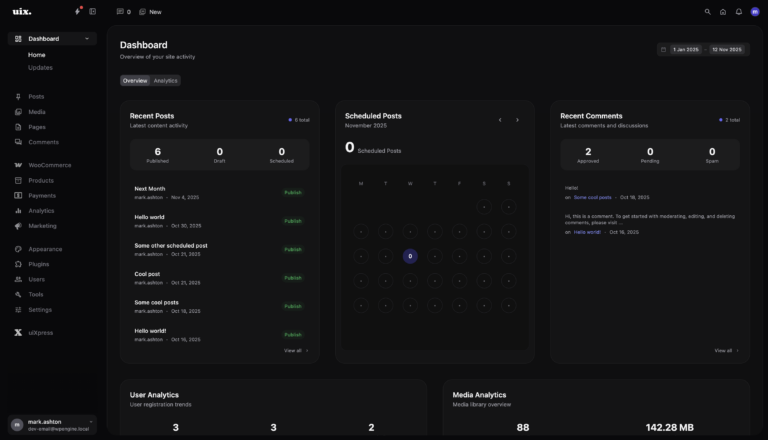
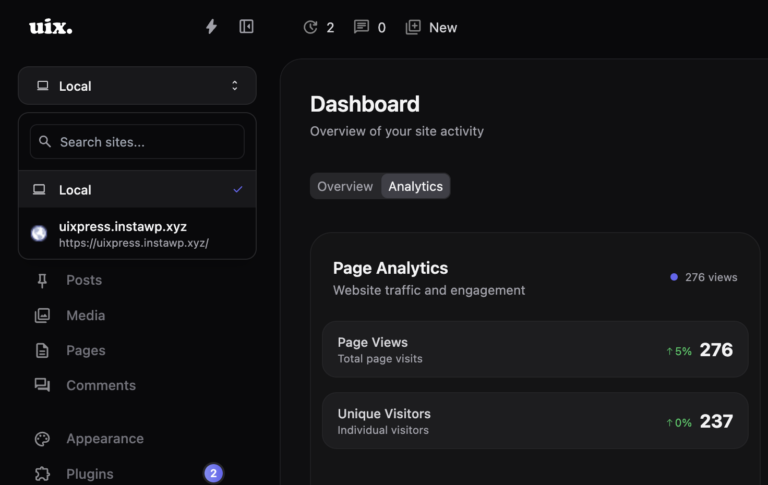
uiXpress includes Dark Engine: a WordPress admin dark mode that rebuilds classic wp-admin, Gutenberg, and the block editor with scoped CSSOM overrides. It is not an invert filter.
What that means in practice:
- Classic admin screens, Gutenberg, and TinyMCE are handled as separate contexts.
- Plugin-owned panels get rescanned as they appear, so late-loading UI does not stay white.
- Accent and brand colours stay recognisable instead of being washed out.
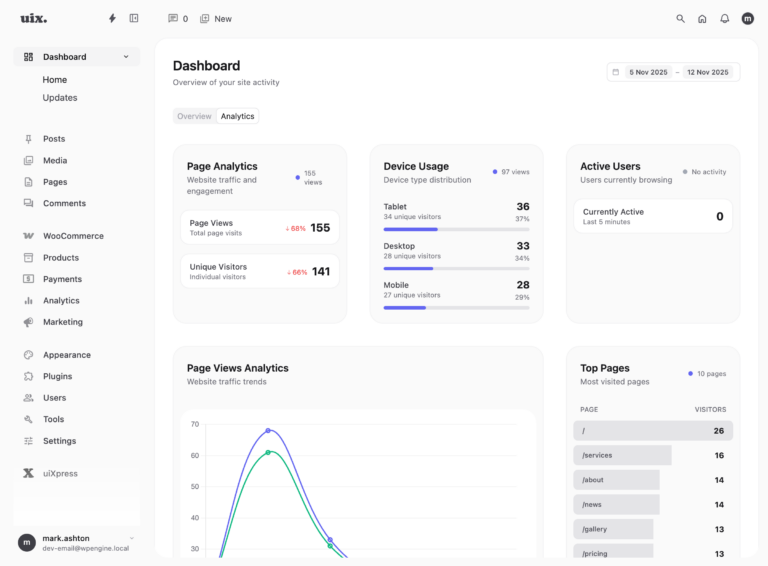
- You can follow the system theme, let each user choose, or force a site-wide light or dark theme for client consistency.
That last point matters for agencies. A shop team may want dark mode. A client brand guideline may require light. You should be able to set that without a custom snippet.
How to enable a usable dark mode without surprising users
- Turn it on for your own Administrator account first.
- Walk the screens you actually use: posts, WooCommerce orders, your form plugin, your SEO plugin.
- Check Gutenberg on a long post, not an empty draft.
- Only then decide whether users get a toggle or a locked theme.
If a specific plugin screen is still wrong, that is a compatibility report — not a reason to invert the whole admin.
Dark mode, admin themes, and the rest of the UI
Dark mode is one part of a modern WordPress admin theme. It works better when the surrounding UI was designed for it: cards, tables, media grids, and search. Painting the default dashboard dark and leaving every plugin screen untouched is how teams end up with three conflicting plugins.
If you want dark mode as part of a complete admin refresh — dashboard, plugin manager, media library, and global search — start with uiXpress. If you only want a toggle on the default UI, a smaller plugin may be enough, as long as you test WooCommerce and the block editor before you roll it out to clients.