A Modern WordPress Media Library: Filter, Bulk Edit, and Find Unused Files
The default WordPress media library cannot bulk-edit alt text or find unused files. A modern media library UI treats attachments like a working file manager.
9th of July, 2026 4 min read uiXpress
The default WordPress media library is a grid of thumbnails and a list view that still feels like 2015. It can upload files. It cannot answer the questions people actually have: which images are unused, which PDFs were uploaded this month, how do I set alt text on forty files, and why is this library 12GB?
Queries like “media library UI,” “enhanced media library,” and “WordPress media library list view” come from people who have hit that ceiling. They do not need another gallery plugin for the front end. They need a media library that behaves like a working file manager.
Where the default media library slows teams down
- Weak filtering. Date and type exist, but unused files, tags, and combined filters do not.
- One-at-a-time metadata. Alt text and captions are an accessibility and SEO job. Doing them per file is how they never get done.
- No usage map you can trust at a glance. You delete a thumbnail and find out it was in a page builder module.
- Clumsy bulk actions. Select, wait, hope the attachment rows still match what you thought you selected.
- An editor that is easy to forget. Crop and scale exist; the workflow around them does not feel like part of the library.
On WooCommerce and magazine sites the library is the biggest admin surface after posts. Treating it as a leftover core screen is how media debt accumulates.
WordPress 7.1’s media editor is a start
WordPress 7.1 shipped a dedicated media editor with freeform and aspect-ratio cropping, flipping, finer rotation, and metadata editing in one place, still entered from the familiar Crop control. That is a real improvement for a single image.
It does not rebuild the library around bulk work. You still need a modern media library UI for filtering, unused-file cleanup, tags, and multi-file metadata. Core made editing one attachment better. It did not turn the library into a DAM.
What a modern WordPress media library should include
Two views that are actually useful
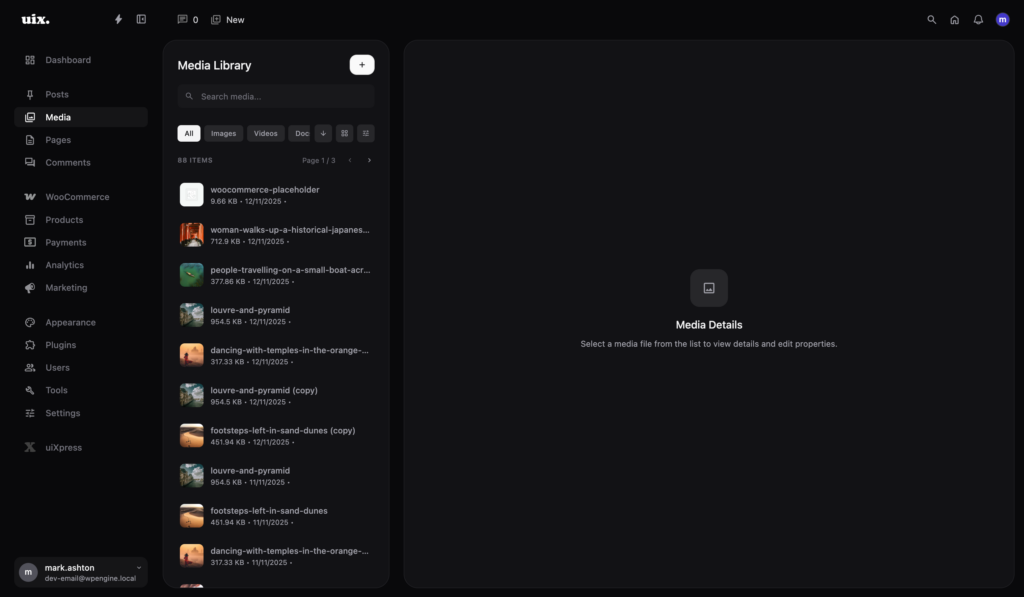
Grid for visual browsing. List for filename, size, type, and date. Switching views should not reset your filters or your current selection.
Filters you can combine
Type (images, video, documents), date buckets, tags, and unused files. “Unused” is the cleanup feature agencies ask for after a redesign.
Search that includes filenames and metadata
People remember hero-final-v3.png more often than the attachment title they never set.
Bulk edit, duplicate, download, and delete
Bulk alt text is the accessibility win. Bulk download is the “client asked for the original assets” win. Bulk delete needs a confirmation and a usage check.
A details panel that stays open
Editing title, alt, caption, and seeing where a file is used should not require a separate attachment screen.
A cleanup workflow that does not delete the wrong file
- Filter to unused files first. Do not start in the full grid.
- Confirm usage on anything that looks like a logo, icon, or product image. Page builders do not always register attachments the way core does.
- Download a ZIP of anything you are unsure about.
- Delete in batches, then take a backup or keep the ZIP.
- Only then start tagging and fixing alt text on what remains.
If you skip the usage check, you will spend the next week restoring images from backups.
The uiXpress media library
uiXpress replaces the default library with a modern media library: grid and list views, combined filters, unused-file views, tags, bulk edit/download/delete, a details panel, and built-in image editing. It is designed as part of the admin theme, so dark mode, search, and the rest of the UI stay consistent.
That consistency is easy to underestimate. A media plugin that restyles only upload.php and leaves the modal media frame alone creates two libraries. Users notice.
Media library vs folders vs custom fields
Folder plugins help people who think in directories. They do not replace filters, unused-file reports, or bulk alt text. Custom fields on attachments help specific workflows (photographer credits, SKU). Start with a better library UI; add folders if the team still cannot find files after you have search and tags.
Accessibility is a library problem
Alt text lives on attachments. If the UI makes bulk alt text painful, your front end will ship empty alt attributes. A modern media library is one of the higher-leverage accessibility tools you can give an editorial team — more than another checklist in a handbook they will not open.
If you came here for a better WordPress media library UI, look for bulk metadata, unused files, and a details panel. Decorative folder trees are optional. Those three are not.