How to Customize the WordPress Admin Menu Without Breaking Client Sites
Customizing the WordPress admin menu is how you stop clients installing plugins. Hide, rename, and assign items per role — then match the capabilities.
26th of March, 2026 4 min read uiXpress
The WordPress admin menu is the first thing a client sees after they log in, and it is usually a mess. Core items, WooCommerce, SEO, a page builder, a backup plugin, and three leftover tools from the last developer all compete for the same left-hand column. “Customize WordPress admin menu” is a popular search because hiding one item in code is easy, and keeping a sane menu after every plugin update is not.
A usable admin menu is not decoration. It is how you stop clients installing plugins and how you stop your own team hunting for Settings → Permalinks every Monday.
What you can change without a plugin
WordPress lets developers remove or add menu pages in PHP:
remove_menu_page()andremove_submenu_page()add_menu_page()for a custom top-level item- Capability checks so a role never sees Plugins
That works until the next plugin registers a new top-level item, a WooCommerce extension adds a submenu, or the person who wrote the mu-plugin leaves. Code is fine for one stubborn item. It is a poor system of record for twenty client sites.
What a menu editor should actually do
If you are looking for a WordPress admin menu customization plugin — or a menu builder inside an admin theme — require more than drag-and-drop.
- Per role. Editors and shop managers should not share an Administrator menu.
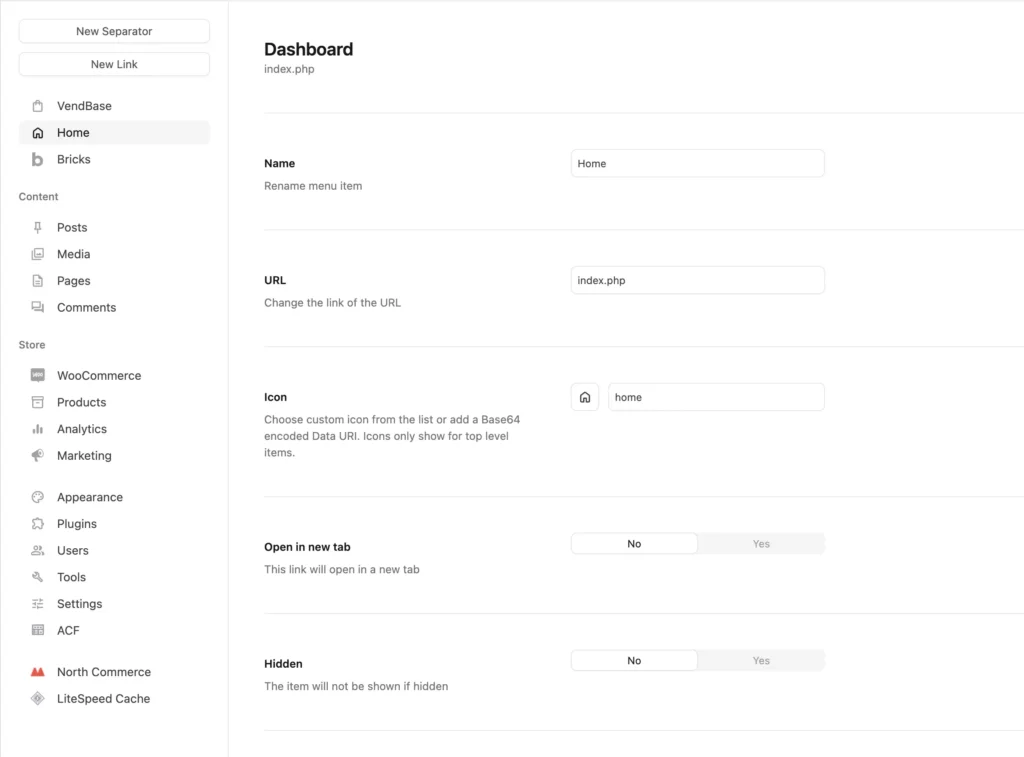
- Rename and reorder. “WooCommerce” can become “Orders & products.” “SEO” can become the client’s brand name for search.
- Hide without uninstalling. The plugin still runs. The client just cannot see it.
- Separators and groups. Five items in a logical order beat fifteen in plugin-author order.
- Icons that match the rest of the admin. A modern admin theme with 2012 Dashicons on custom items looks unfinished.
- Survive updates. A menu map stored in the database should reapply after WooCommerce ships a new submenu.
If the tool only offers a global menu for every user, you will still give clients too much.
A practical menu for agency handovers
Start from the client role, not from Administrator. Administrator can keep the full tree while you design.
- List the jobs the client actually does: write, fill orders, view a report, contact you.
- Keep Dashboard, the relevant content types, and one support or documentation link.
- Hide Plugins, Themes, Tools, and Settings unless that person is on your team.
- Rename remaining items into their language. “Posts” might be “Articles.” “WooCommerce” might be “Store.”
- Log in as that role in a private window and click every leftover item once.
Pair the menu with a role editor. Hiding Plugins in the menu is not the same as removing install_plugins. A determined user with the capability can still reach plugin-install.php.
Common menu mistakes
- Hiding WooCommerce while they run a store. They will email you for every order.
- Leaving Comments visible on a site that does not use comments.
- Nesting the important item three levels down because the plugin author did.
- Creating two items that go to the same screen after a rename and a leftover original.
- Forgetting the admin bar. New Post and Customise links still sit in the toolbar if you only edited the sidebar.
WordPress 7.1’s persistent admin bar makes the toolbar more present, not less. Check both surfaces.
Customizing the admin menu in uiXpress
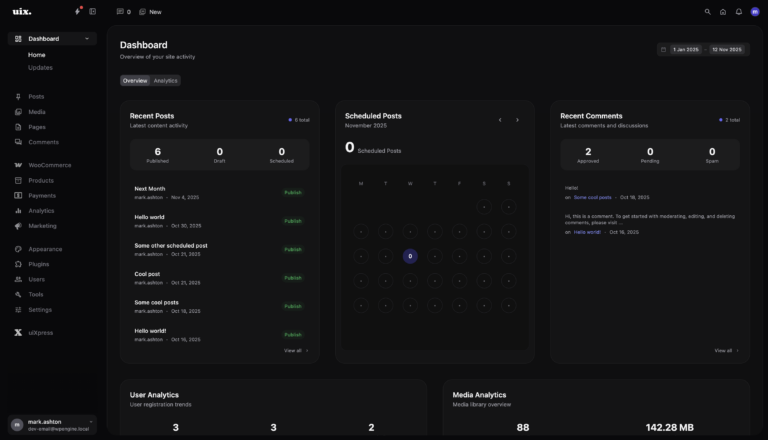
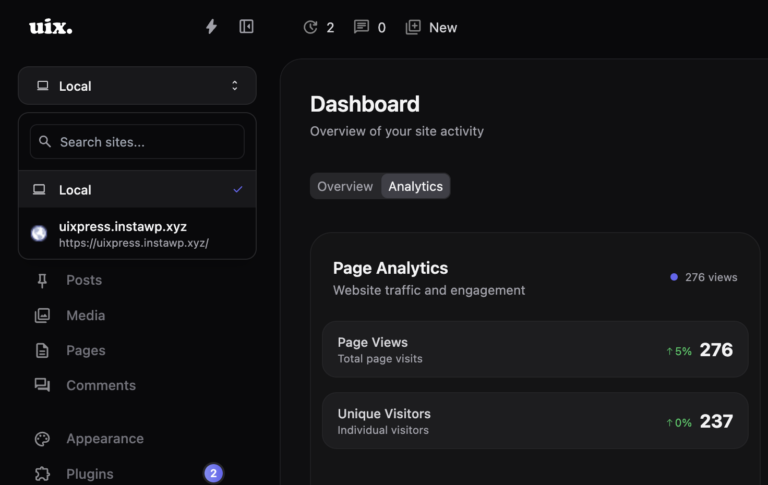
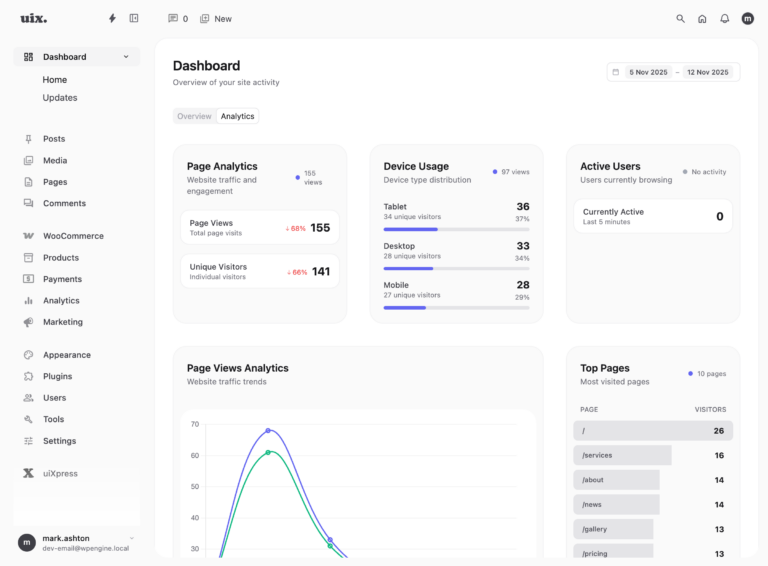
uiXpress includes admin menu controls as part of the admin theme: behaviour, icons, and a menu you can shape for each role instead of maintaining a PHP snippet per site. Combined with white label and a custom dashboard, the first screen after login can be five items and a useful home page.
That is the difference between “we hid some menu pages” and “we designed the admin the client will use.” The second one is what retainers are for.
When to leave the default menu alone
If the only users are developers, a cleaned default menu is enough. Do not spend a day renaming items nobody else will see. Invest the time when a non-technical role logs in more than once a week, or when you are packaging the same admin across a set of client sites.
Customize the WordPress admin menu around jobs, lock it to roles, and verify capabilities match what you hid. The menu is the map. If the map is wrong, people wander into Plugins.