Activating Google Analytics
This covers the (very quick) process of activating google analytics in Admin 2020 version 1.3 and above. Once you have installed admin 2020, go to settings in your WP admin menu and select Admin 2020. From the admin 2020 settings, select th...
29th of September, 2020 1 min read uiXpress
This covers the (very quick) process of activating google analytics in Admin 2020 version 1.3 and above.
Once you have installed admin 2020, go to settings in your WP admin menu and select Admin 2020.
From the admin 2020 settings, select the Google Analytics tab and you should see the below screen:

Click on the sign in with google button, you will be promoted by google to either sign in or choose your google account.
After selecting the account you will be greeted by the following screen:

If you happy for Admin 2002 to view analytics data then click allow. After that you will see a screen allowing you to choose the account to sync. Select the one you wish to use and press validate. And that’s it!
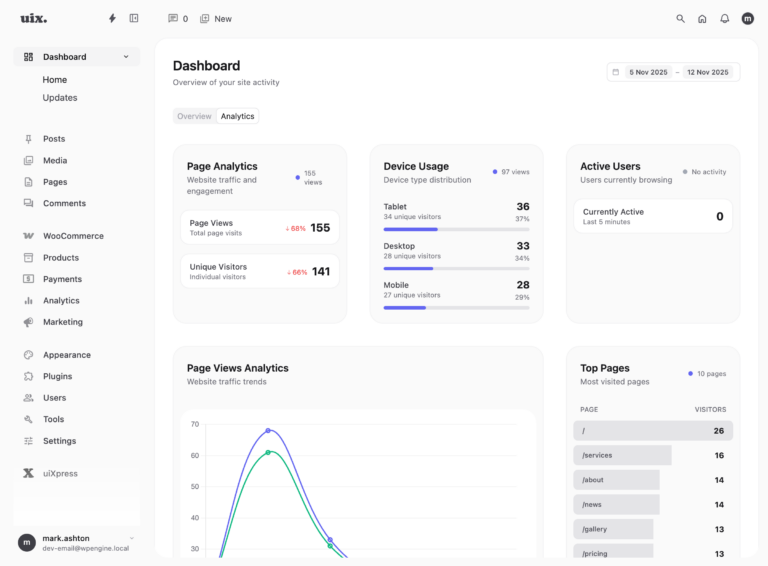
When you go to the overview page you should now get an a page full of beautiful analytics data like this: